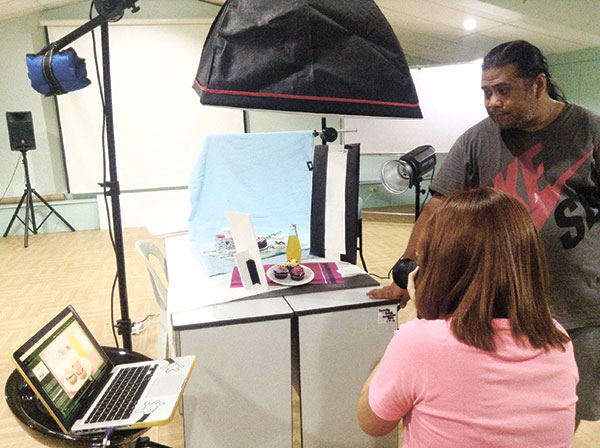
Tethered shooting
 Albert Pedrosa
Photo mania
I HAD a unique scenario few years back with a client who wants to see the shots while we were shooting. It was on outdoor shoot, so we had to connect my camera through its USB port to my enclosed laptop and use Lightroom’s tethering feature. It was a solution at that time, but we encountered some concerns along the way.
Yes, the client was happy even if the shots were coming in slow. There’s about five seconds delay, and I have to shoot it with a good interval between shots, so the transfer of data, given the fact that we were shooting raw, wouldn’t be that overwhelming. The connection between the computer and camera somehow kept on disconnecting.
This was something that I had to deal with every time we needed to shoot tethered. I know that I must have done something wrong or a setting that needed to be set, since those that I see in YouTube are working perfectly fine.
Upon further experimentation, it turned out that the disconnection happens when the camera automatically sleeps. All I have to do is set the auto sleep to disable. This totally solved the problem of connection, but the drawback is it consumes more battery, so you need to bring in multiple batteries.
The next issue is the very slow file transfer that everybody is doing the mannequin challenge waiting for the photo to appear in the computer. This too has a solution. Remember the CD that came with your camera, the EOS utility software? It turned out to be the best solution to tethering. It also offers live view, which is very useful when doing overhead shots.
The EOS utility allows you to transfer jpegs only to your computer and saves the raw to your memory card in the camera. For faster results, you can even select a small size jpeg for faster transfers. This way, you can shoot at a normal pace and not worry about file transfer issues. So there you go, everything solved in tethering.
Of course there’s some feature in Lightroom that just can’t be done in EOS utility like the preset editing that can be applied to the image on the fly. The sorting and compare features when you want to compare two images. I know that you can make a hot folder for Lightroom to fetch images, but it’s something I need to explore.
Tethering is a great setup for you to assess your shots. It also allows your team to see the result in real time, so they can pitch in their thoughts and suggestion to the shot. The learning will never stop, it’s up to you how far you want to go. Keep on shooting, everyone!
photomania.sunstar@gmail.com
www.grp.ph